HDR Tone Mapping
HDR Tutorial – Part 4
Up until this point, the HDR process has been completely turnkey – follow the steps, get an HDR image. Here, however, things get personal and artistic vision comes into play as you take your HDR file containing a huge amount of brightness information and map it back to something that can be saved as a normal JPEG and displayed in a normal monitor. This process is called “tone mapping” and it’s where an HDR image becomes what people tend to think of when they think of HDR images.
Tone mapping in Photomatix (which I will consider since it’s the tool I use) involves mucking with the values of 15 different sliders which control various aspects of the conversion. The settings for every image are different so it’s not possible to give specific values that will always generate the kind of image I produce. Instead, I will discuss the settings and indicate roughly what each one does and how much effect it has on the final image. I should point out that I have pretty much no idea of the mathematics behind these sliders – my descriptions are based purely on fiddling with them and observation of the results. I would encourage you to do the same.
Tone Mapping Mechanics
The mechanics of tone mapping an image in Photomatix are pretty straightforward:
- If you don’t already have the HDR image opened, open it using “File/Open…”. Typically, I tone map immediately after generating the HDR so the file is already open.
- Press the “Tone Mapping” button in the “HDR Viewer” window or select “Process/Tone Mapping…” from the menu.
- Choose the Tone Mapping method you want to use. Your choices are “Details Enhancer” or “Tone Compressor”. I always (yes, absolutely always) use “Details Enhancer” but feel free to play with the Tone Compressor and see if you can make it do anything useful (I can’t).
- Fiddle with the values of the 15 sliders until you are happy with the image preview.
- Press the “Process” button to perform the tone mapping.
- Save the results to a file in a format you like. I use “TIFF 16-bit” to retain the maximum colour information since I will be pulling the tone mapped image into Lightroom and, sometimes, Photoshop for final retouching. If you don’t want to do this, you can use JPEG.
That’s it – you’re done. Well, more or less. Perhaps it’s worth considering those pesky 15 sliders and what they do since, as I mentioned back in part 1, you can tone map a single HDR image in thousands of different ways and come up with completely different results. Just to prove my point and to whet your appetite for some slider info, here’s the example image I am using throughout the tutorial tone mapped with four different sets of parameters. Don’t worry – I’ll provide the actual parameter sets used for each mapping in the final part of the tutorial. Click on each to go to the image on Flickr where you can see the original, high resolution versions.
Basic Settings

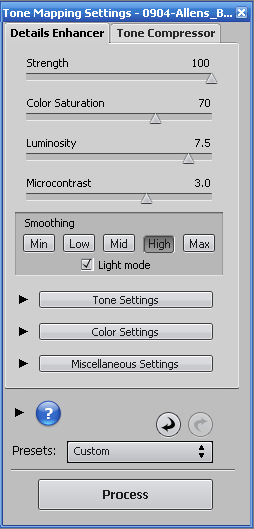
Photomatix Tone Mapping Settings
The top 5 settings in the Photomatix Tone Mapping Settings dialog box are probably the most important set used to control the way your final image looks. They are also settings that I modify for just about every image I process.
- Strength
- This slider controls how dramatic the final image looks. The higher the value, the more pronounced the “HDR effect” in the final image, the lower the value, the more natural the output. High values are great for artistic renderings, lower values for more realistic output.
- Color Saturation
- Increasing the colour saturation from 50 makes the colours in the output more vivid than the original image. Decreasing it below 50 makes them more muted. If you want a monochrome tone mapping, slide this all the way to the left (though you may prefer to do a colour tone mapping then use Photoshop or Lightroom for the monochrome conversion).
- Luminosity
- The luminosity value controls the amount of fill light in the image. Think of this as a form of brightness adjustment. High values make the image lighter, low values make it darker. I use this slider quite a bit to increase the overall brightness of the image since some of the other settings I use have a tendency to darken the image significantly.
- Microcontrast
- Although called “microcontrast” this slider appears to me to modify the overall image contrast (which would make it a “macrocontrast, wouldn’t it?). This is one of the “texture sliders” for me. Increasing the microcontrast increases contrast in the image but tends to darken the result requiring a change in luminosity or white point to compensate.
- Smoothing
- This is almost certainly the most critical setting. High values of smoothing reduce halo effects at high contrast edges, low values generate nasty smudging and haloes. You can probably guess where this slider ends up in every one of my images – close to the right edge. The control has 2 modes in Photomatix 3.2 – either “Light mode” which offers you 5 buttons to choose from, or ‘not Light mode” which offers a slider. The “Light mode” selection matches previous versions of Photomatix and I pretty much always use “High”, the second top setting since it gives me the effect I want.
Tone Settings

Photomatix Tone Mapper - Tone Settings
- White Point
- The white point determines which pixel value is considered full white in your image. Increasing the value increases the image brightness (if you look at the histogram, you will see it stretching to the right). Decreasing it, lowers the overall brightness. This is an important slider when setting the brightness, obviously, but it also comes in handy when trying to control blown out highlights.
- Black Point
- The black point determines which pixel value is considered full black. Think of it as acting on the opposite end of the histogram from the white point. Increasing the black point stretches the histogram to the left and pulls more of the pixels into the “full black” area, darkening the image. Moving it left, has the opposite effect. Normally, I find this slider remains at or only very slightly above 0 for my images.
- Gamma
- This is another of my “texture sliders”. Gamma controls the overall contrast of the image but in a more dramatic way than microcontrast (so perhaps this is the “macrocontrast” after all). Use high values near the left of the slider (I wonder why this one works in reverse?) for high contrast output and low values near the right of the slider for low contrast.
Color Settings

Photomatix Tone Mapper - Color Settings
- Temperature
- This controls the overall warmth of the image. High values near the right of the image result in an overall warm (orange/red) tone whereas low values on the left of the slider result in a cool (blue) tone to the output.
- Saturation Highlights
- This slider allows you to modify the colour depth of the brighter areas of your image. Increasing the value above 0 causes the bright areas to be coloured more vividly, decreasing it causes their colours to be muted.
- Saturation Shadows
- This setting is similar to “saturation highlights” except that it affects only the dark areas of the image
Miscellaneous Settings

Photomatix Tone Mapper - Miscellaneous Settings
- Micro-smoothing
- This is my final “texture slider”. It controls the light smoothing in a very localised area. Setting it to zero has a wonderful effect on fine texture and really makes it pop out. Unfortunately, setting it to zero generates horrendous noise in large areas of slowly changing colour like, say, skies.
- Highlights Smoothness
- This slider control light smoothing of the bright areas of the image. Increasing it tends to make the “HDR effect” look somewhat more subtle while lightening the image. Typically, I don’t use this setting and just leave it set to 0.
- Shadows Smoothness
- This slider control light smoothing of the dark areas of the image. Increasing it tends to make the “HDR effect” look somewhat more subtle while darkening the image. Like “Highlights Smoothness”, this is not a setting I typically change from 0.
- Shadows Clipping
- This setting allows you to push all pixels below a given value into solid black. Unlike “Black Point” it doesn’t affect any pixels above the set value so there is no overall brightness change when you use it – you just see some dark areas of the image move from darkish to really dark. I practically never use this and leave it set on 0 but subtle use can make the image more punchy.
Moving on to the final part of the tutorial, I’ll let you in on the parameters sets I used for the four example images above.